Operation Guide for Adding a Camera via Non‑QR Code Mode
1. Preparations Before Adding
1.1 First‑time setup
Connect the camera to power. Wait for the voice prompt: “Device waiting to connect”.
Once you hear this, you may start the adding process.
1.2 Re‑adding / Resetting the camera
Press and hold the camera’s reset button until you hear:
“Reset successful, device is rebooting, please wait”.
Allow the camera to finish rebooting.
2. Steps to Add the Camera in the APP
Open the Zosi Smart APP and make sure you are on the Device tab (the first icon on the bottom left).
When you hear the voice prompt “Device waiting to connect”,
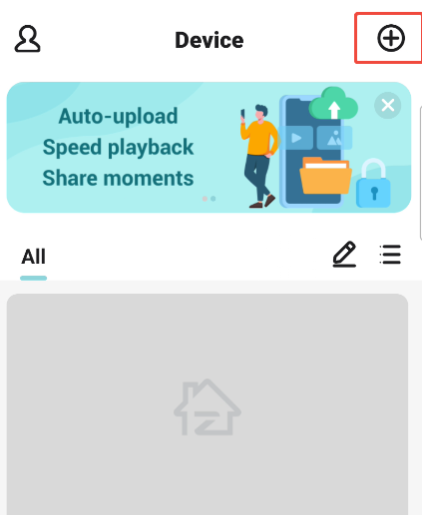
tap the + (plus) icon in the top‑right corner of the Device page to start adding.
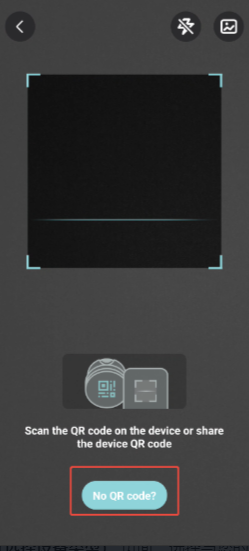
On the QR code scanning screen, tap No QR code? at the bottom to enter non‑QR code mode.
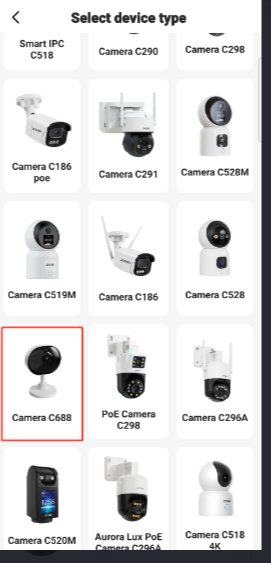
On the Select device type screen, choose the option that matches your camera model (e.g., Camera C688).
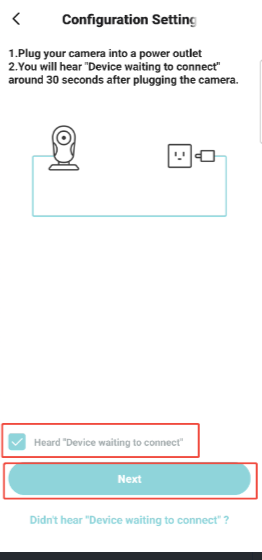
On the Configuration Setting screen, confirm you have heard “Device waiting to connect”,
check Heard "Device waiting to connect", then tap Next.
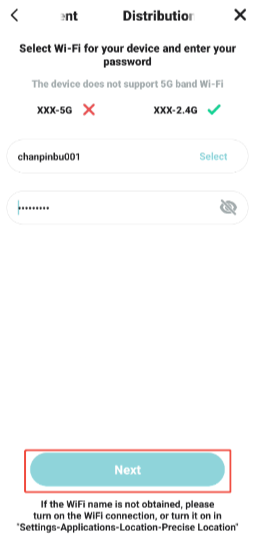
On the Distribution network screen:
Select the Wi‑Fi network your camera supports (note: some models do not support 5GHz Wi‑Fi).
Enter your Wi‑Fi password, then tap Next.
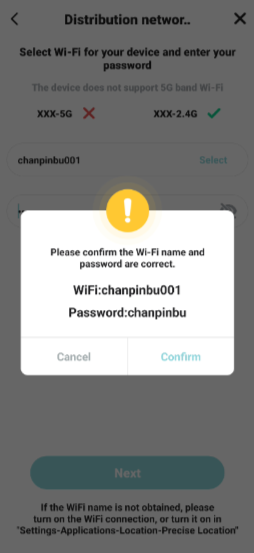
In the confirmation pop‑up, verify that the Wi‑Fi name and password are correct, then tap Confirm.
On the Connect device screen:
The APP will automatically copy the password for the Wi‑Fi hotspot starting with IPC_AP_, and show the prompt:
“The password for Wi‑Fi starting with 'IPC_AP_' has been copied. Please connect and return to the app.”
Tap OK, then:
Go to your phone’s Wi‑Fi settings.
Find and connect to the hotspot named IPC_AP_XXXX (the password is already copied; simply paste it).
After connecting, return to the Zosi Smart APP to continue.
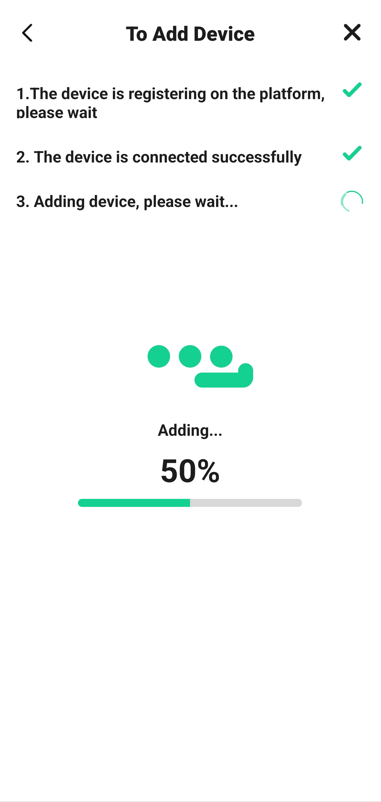
Wait for the APP to finish device registration, connection, and setup (the process is complete when the progress bar reaches 100%).
The camera will announce the status in sequence:
Wireless configuration successful
Wireless connecting, please wait
Wireless connection successful
If you hear:
“Wireless connection failed”
Please go back, check that your Wi‑Fi password is correct, and try again
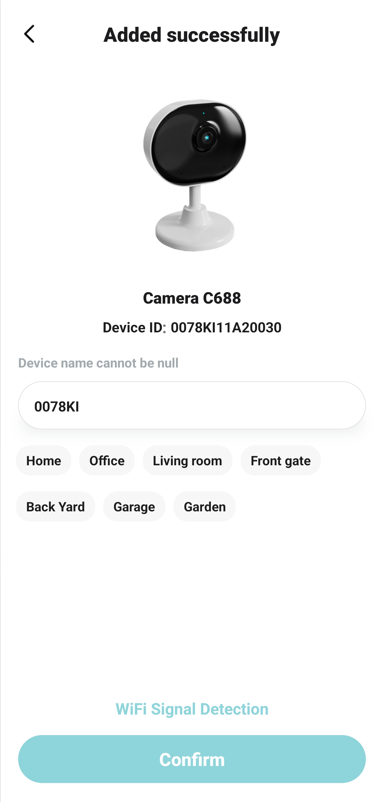
On the Added successfully screen, tap Confirm to finish setup.
![]()

Comments
0 comments
Please sign in to leave a comment.